Logging your first meal in Radish: six ways, only one to pick
In short
The add screen offers six methods. A packaged product: scan the barcode. An everyday food: search it by name. A whole dish: the recipe library. Nothing matches: create the food by copying the label. A full plate: photo or description, two methods that go through the optional AI assistant, a paid feature. Each method tells you upfront where the number will come from.
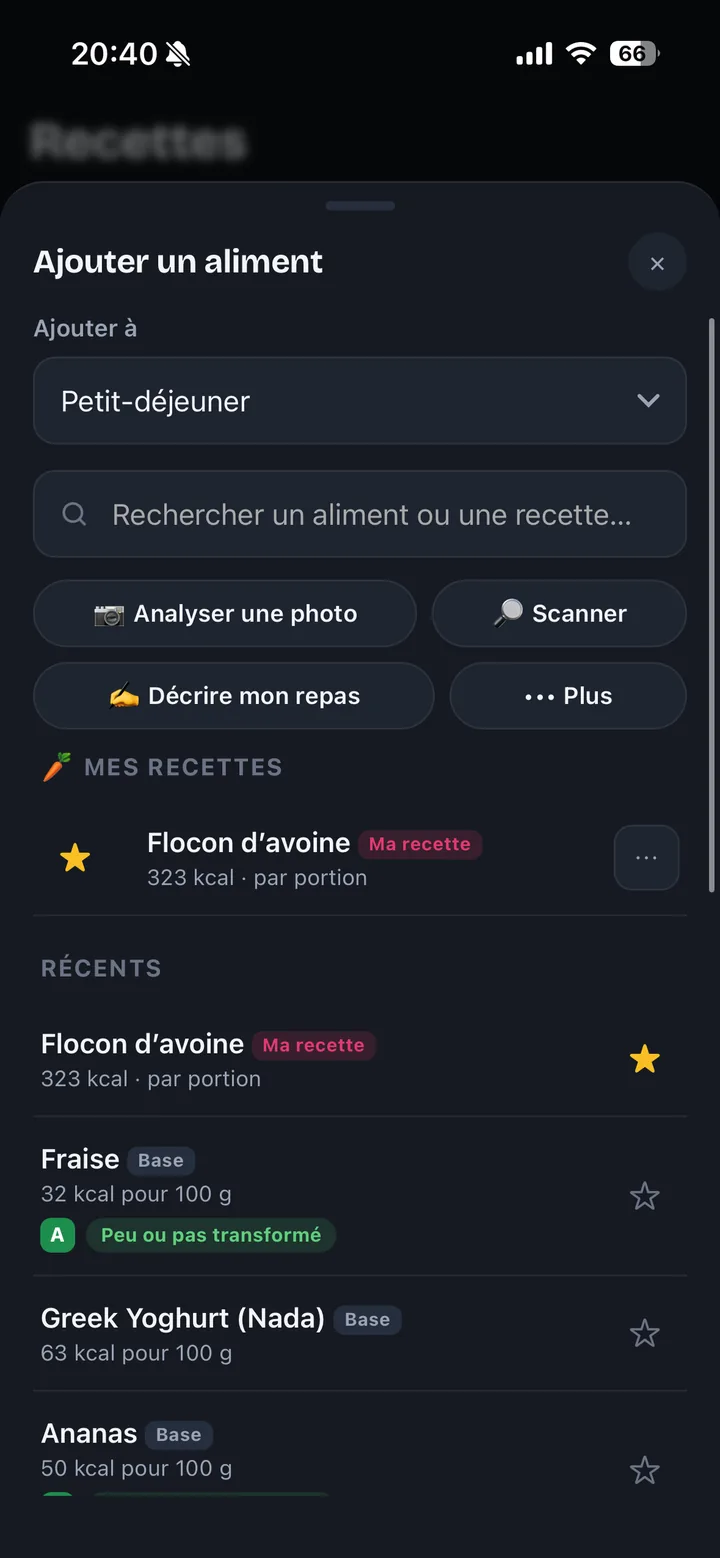
The first meal you log is the moment the app becomes useful, or stays one more icon. The blocker is almost always the same: six buttons, and no idea which one. Here is the map, method by method, with the situation each one is built for.
The six methods, and when each one is right
On the add screen, the picker asks “How do you want to log it?” and lines up six entries. Each carries a subtitle that describes the situation, not the button:
- Scan a barcode — a packaged product, with its barcode. Fastest route, and the default for anything that came out of a wrapper.
- Browse the database — an everyday food, searched by name. Each result shows where its figure comes from.
- My recipes and the library — a whole dish. The serving is suggested, you can adjust it.
- Create a food — nothing matches: copy the label.
- Analyse a photo of my plate — a full plate, when you don't want to break it down.
- Describe my meal — a meal you can describe in one sentence.
The last two go through the AI assistant: those are paid features, and they send the photo or the sentence to a provider for the time of the reading. The first four don't — they run on the database bundled inside the app. What Premium adds exactly is covered separately.
Then the quantity — and nothing else to decide
Once the food is picked, a sheet opens. It holds:
- serving chips already known for that food, plus a 100 g chip;
- a grams field, flanked by − and + buttons that step the value by 10 g — handy for nudging a number without bringing the keyboard back;
- the calories and the three macros (P, C, F), recalculated on every keystroke.
Two settings stay collapsed until you open them: the meal time (otherwise the time of the tap is kept) and, for foods whose cooking class the app knows, a cooking method selector (simmered, roasted, boiled, pan-fried, deep-fried, grilled, steamed).
Which meal?
Radish ships with four meals: breakfast, lunch, snack, dinner. They are not fixed — you can rename them, add some, delete some (at least one must remain). Deleting a meal does not touch foods already logged on past days: they stay in the diary.
If the app finds nothing
It happens, mostly on regional products. A barcode missing from Open Food Facts returns a plain message — product not found, you can add it manually — and the app says it without dressing it up: it will not invent the values of a product it doesn't have. That's the moment to pick up the packet and copy the label once: the food then stays in “My foods”, ready to reuse.
Radish not installed yet?Diary, scan, Nutri-Score. Free, no account, no card.Download Radish →The gesture that really counts is the second one
One meal logged is not a habit. The second one is — because by then the app starts handing back what you already logged, and the gesture shifts from “search” to “tick again”. That's the subject of the article on recents, frequents and favourites.
Frequently asked questions
Do I need an account to log a meal?
No. Radish has no user account: no email, no password. Your diary stays on your phone — never sent to our servers (except AI or barcode scanning, if you use them).
Is barcode scanning a paid feature?
No, it is part of the free core, along with the diary, search, the CIQUAL table, recipes and Nutri-Score.
What happens when I scan a product?
The product code is sent to the open Open Food Facts database to fetch its record. Nothing else from your profile goes with it, and your diary does not leave the phone.
Can I log several foods at once?
Yes. In the “Add to meal” sheet you tick several foods and the button shows the running total before you confirm.
Can I correct a quantity afterwards?
Yes, a diary line can be reopened and edited.
Still haven't installed the app? Download Radish for iPhone or Android →